
How to save your licence data
This guide explains how to create a secure backup of your Ozeki NG SMS Gateway licence data and installation file. By saving the Serial number, System ID, activation code, and installer in one protected folder, you can quickly reinstall the software and restore your licence if the server is replaced, damaged, or rebuilt.
Save your Ozeki NG SMS Gateway licence data into backup folder
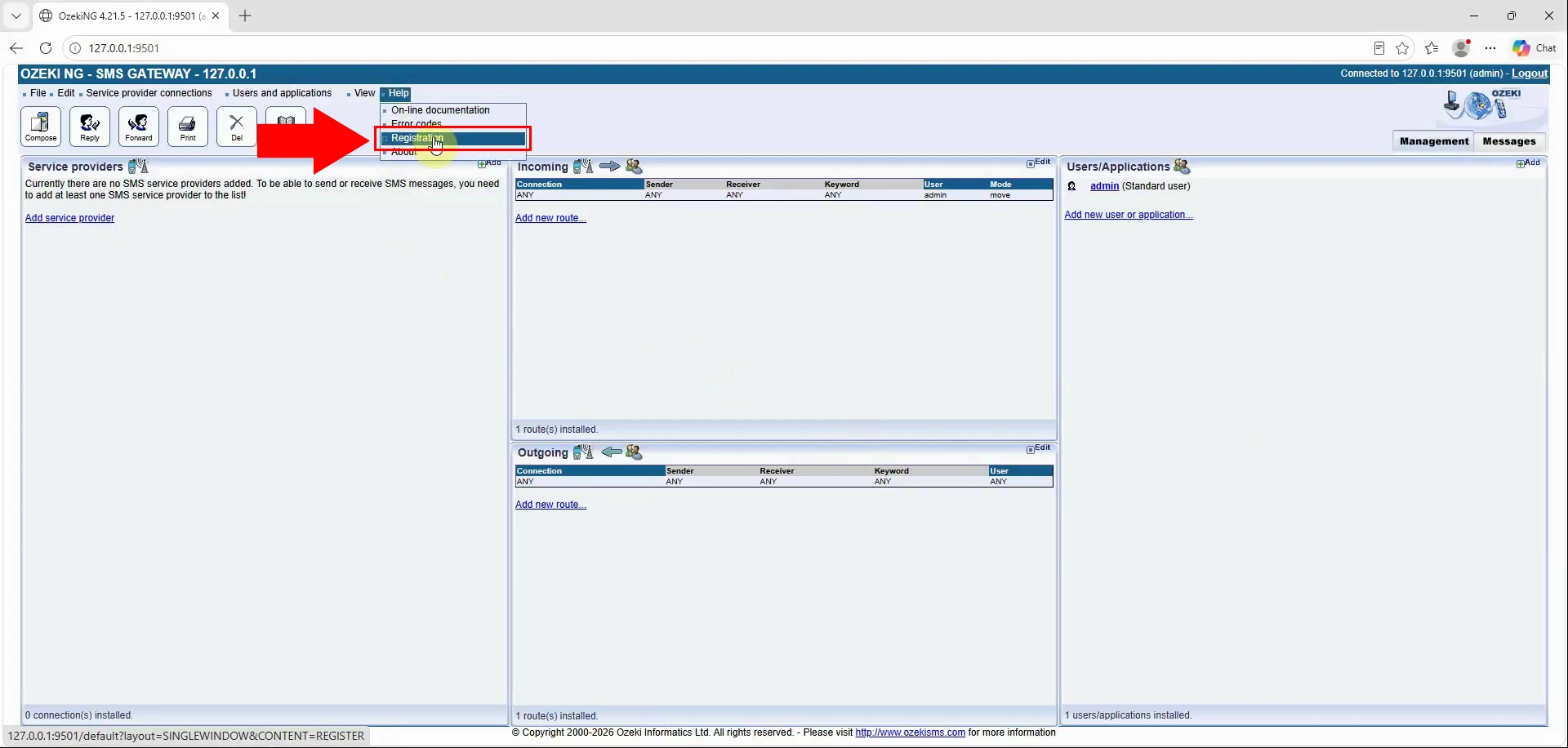
Open the Ozeki NG SMS Gateway user interface and navigate to the registration page. This page displays the licence-related information required for a complete backup.
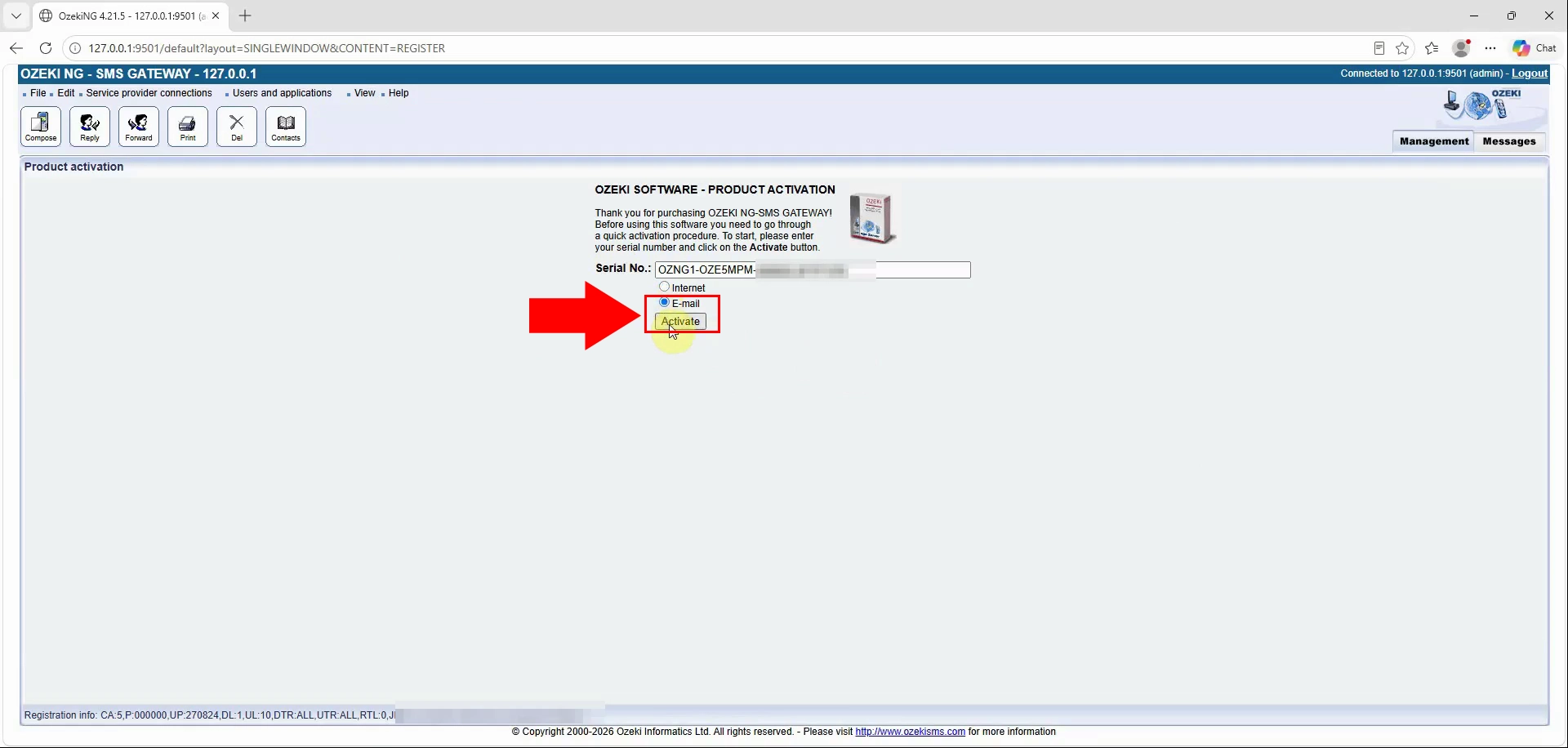
On the registration page, select Email activation as the activation type. This view provides the serial number, System ID, and activation-code fields needed later. Use this method even if the gateway is already activated successfully.
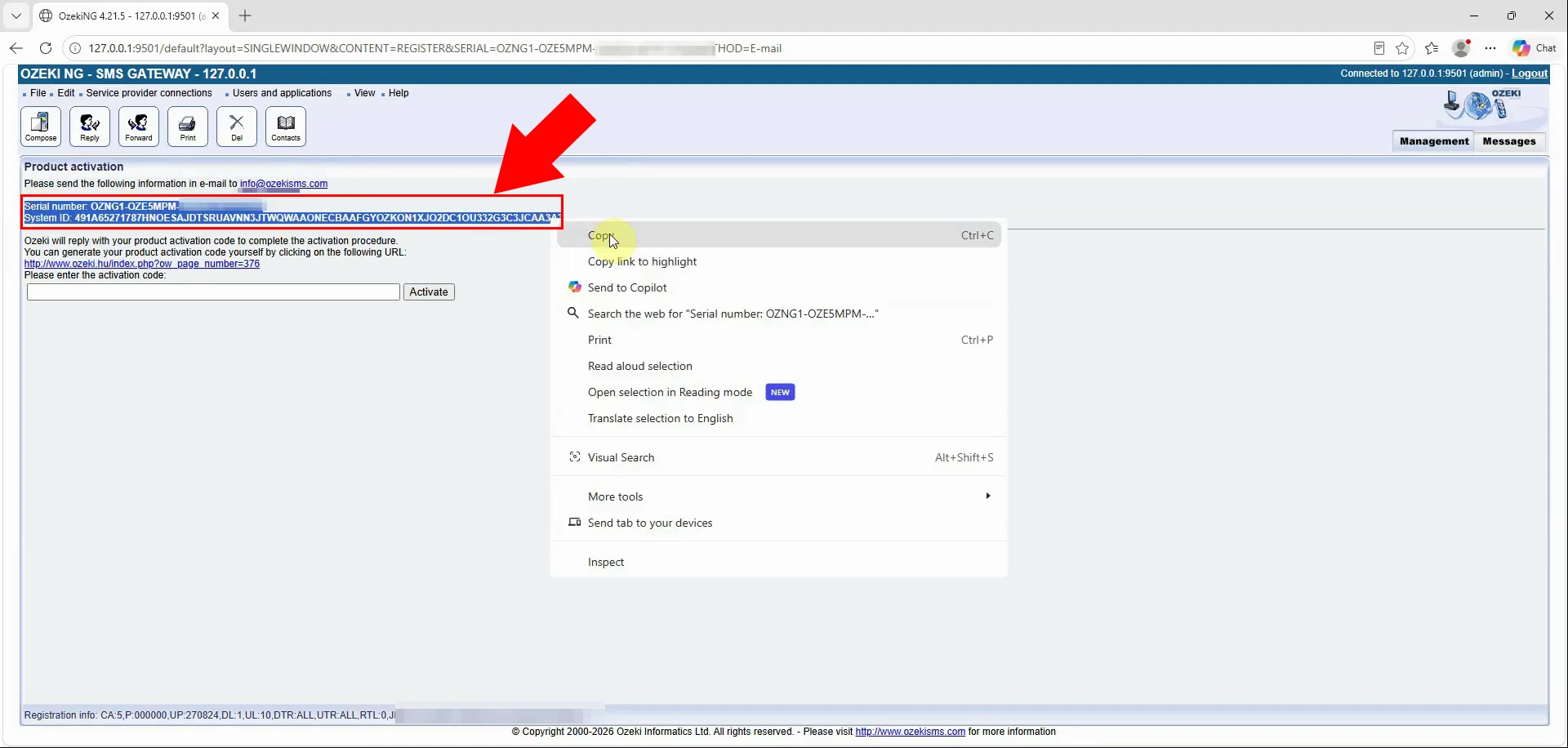
Copy the displayed Serial number and System ID from the Email activation page. These values identify both your Ozeki NG SMS Gateway licence and its original system. Record them exactly, without extra spaces or altered characters.
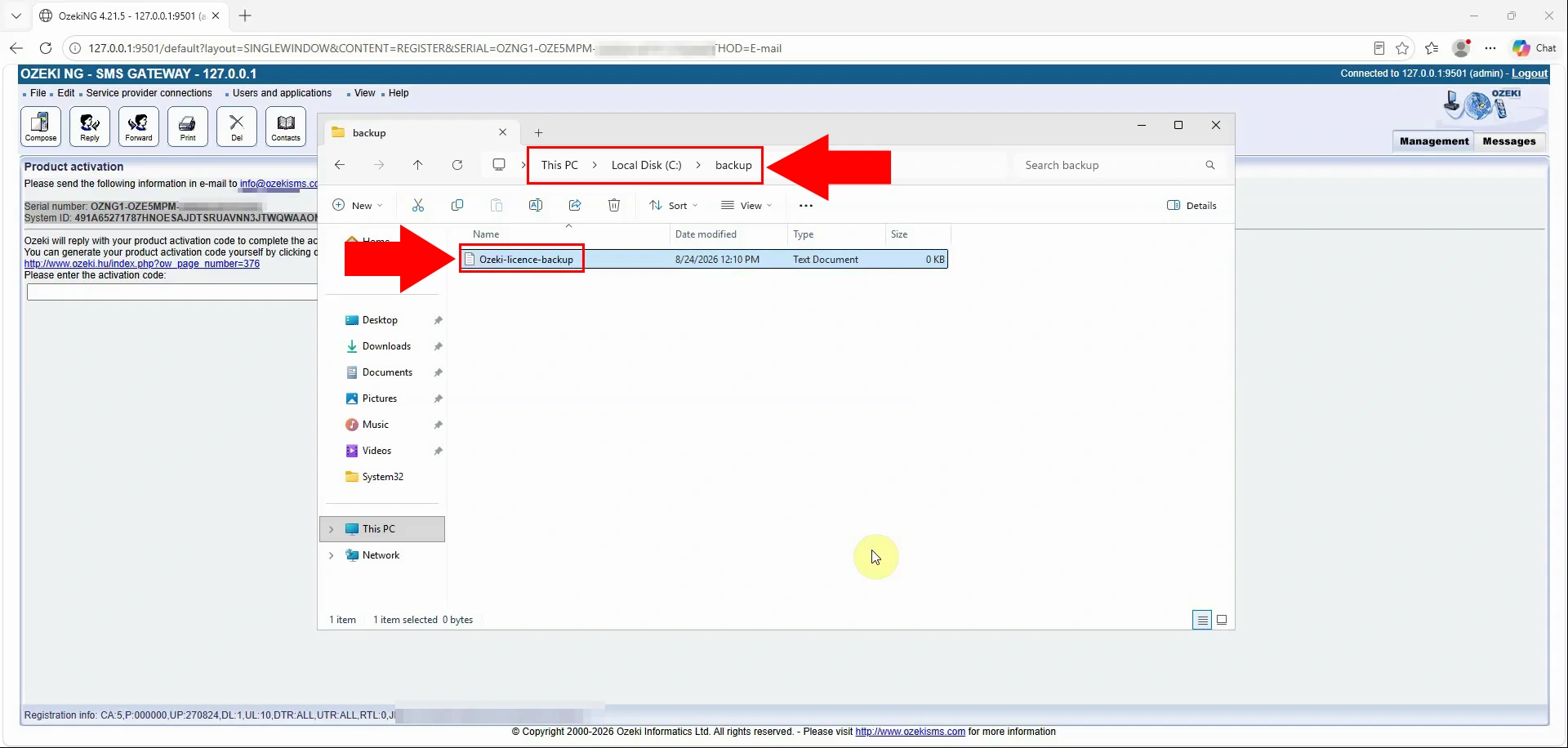
Create a new text file inside a dedicated, secure backup folder. Use a descriptive filename, such as ozeki-ng-licence-backup.txt, so it is easy to locate. Protect this folder from unauthorised access because it will contain activation credentials.
Paste the Serial number and System ID into the new text file. Label each value clearly so it can be identified during a future recovery. Save the file after verifying that both values are complete and accurate.
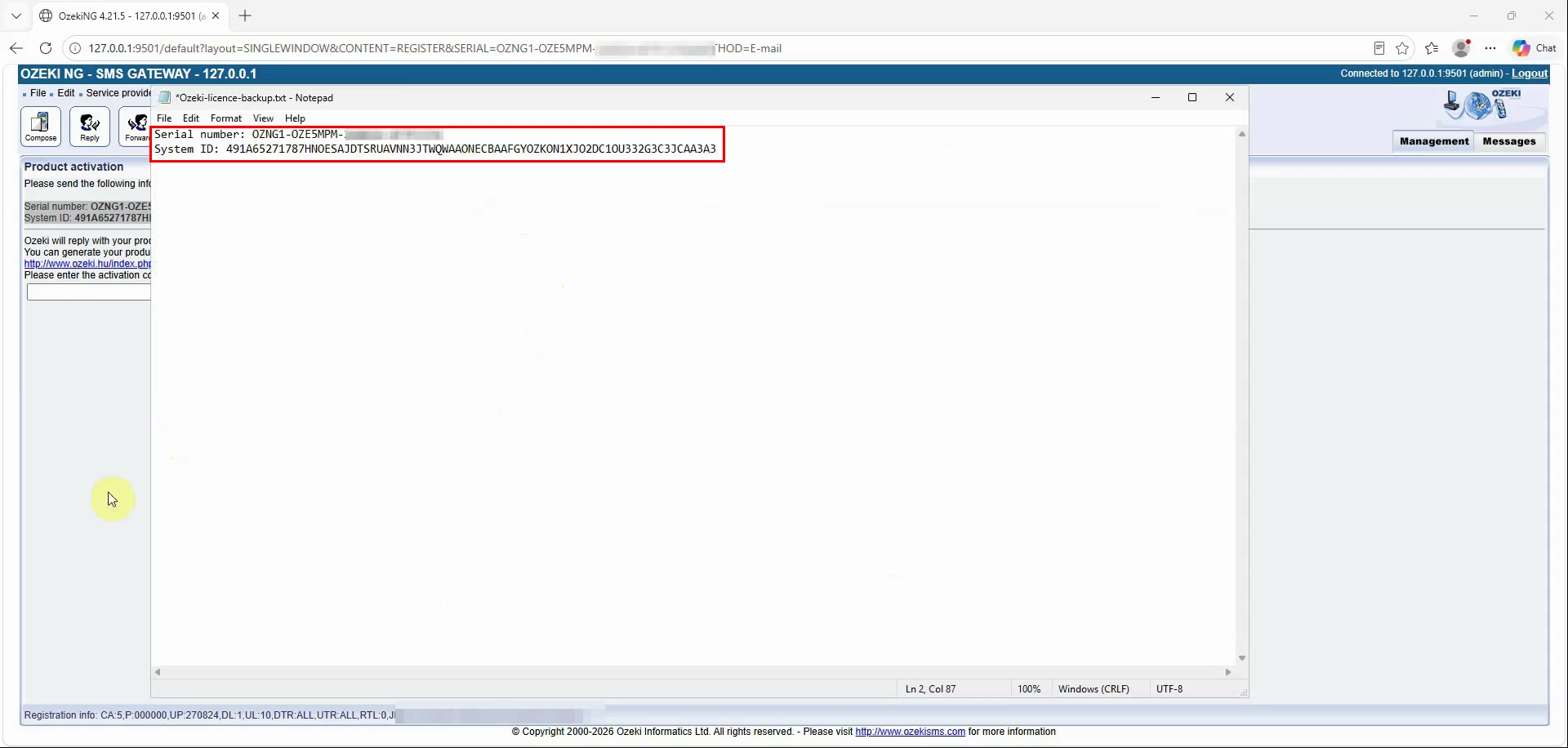
Copy the activation code shown on the Email activation page. The activation code is required together with the Serial number and System ID to restore the licence. Make sure you copy the full code exactly as displayed.
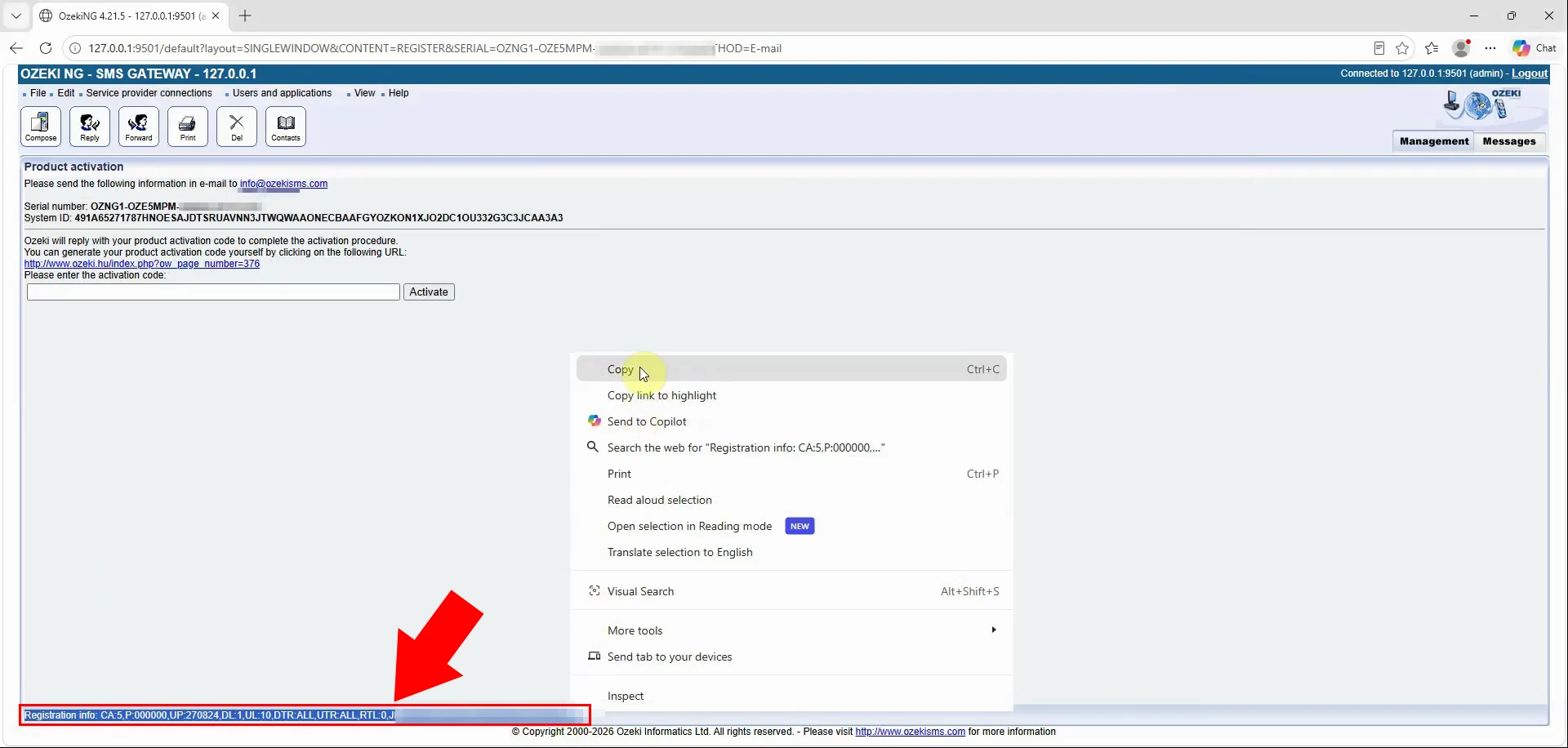
Paste the activation code into the same licence-backup text file. Store it next to the Serial number and System ID, using a clear label such as Activation code:. Save the updated file and retain it in the secure backup location.
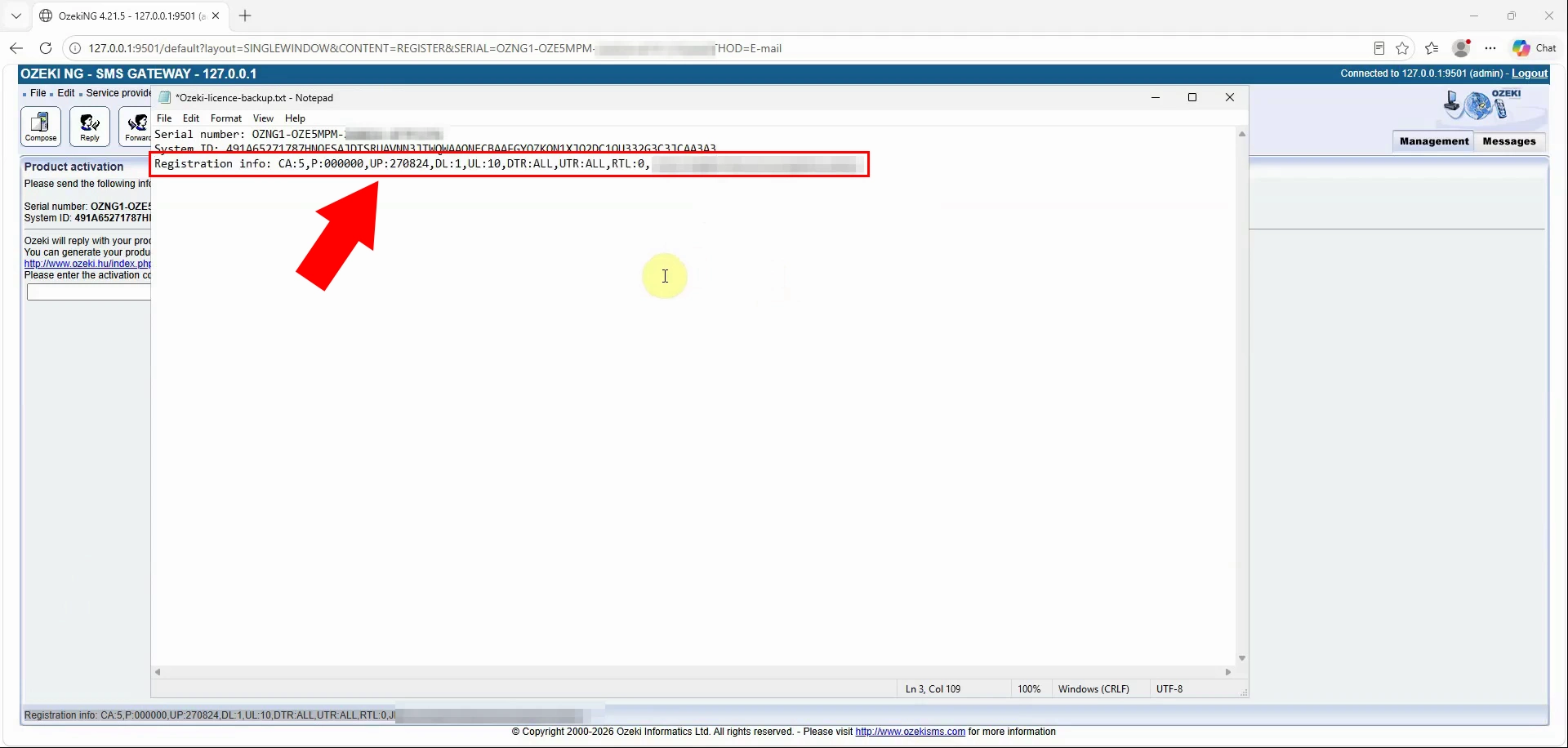
Download installation file into your backup folder
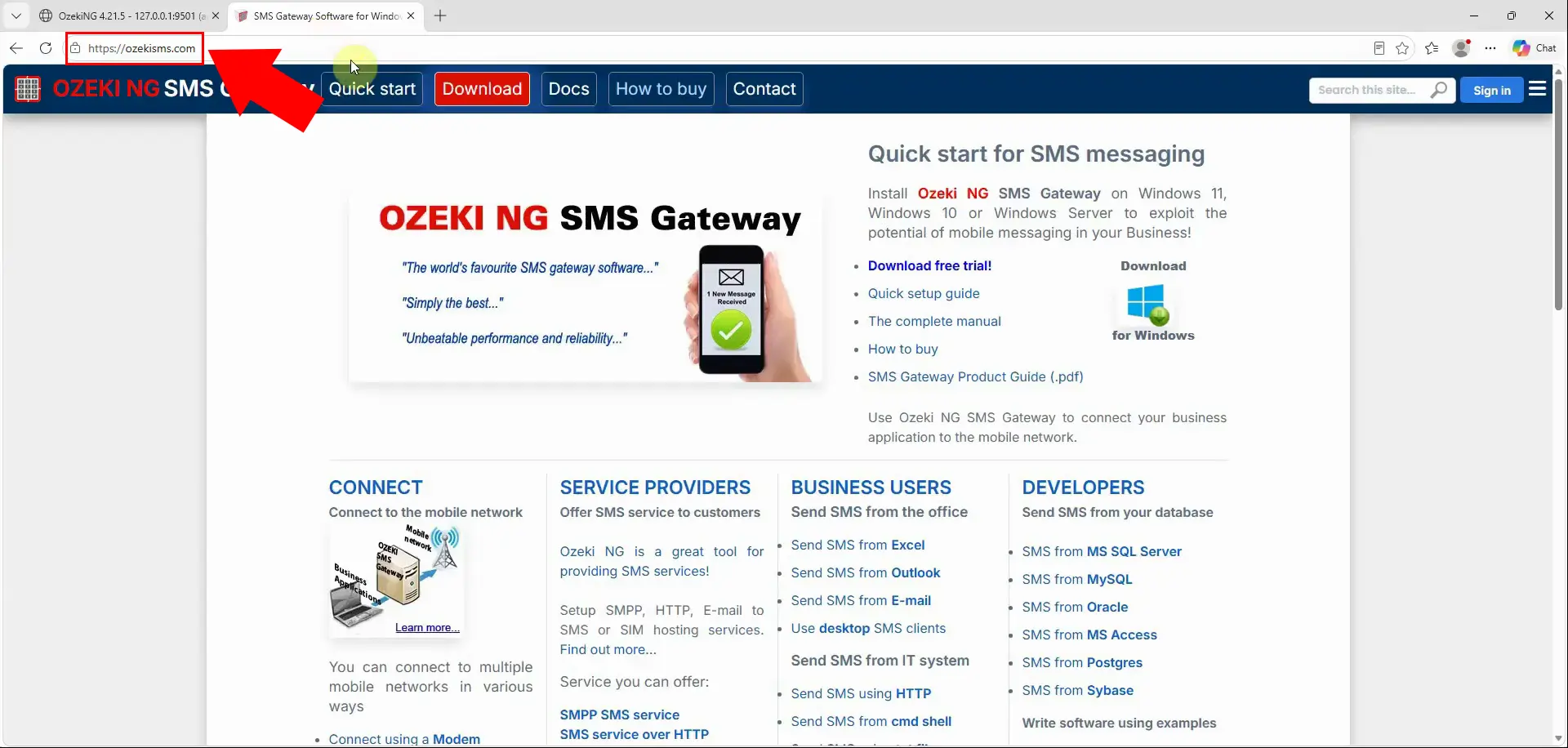
Open the official Ozeki NG SMS Gateway webpage in a browser. This is the source for obtaining an installer that can be used during a future reinstallation. Download software only from the official Ozeki site to avoid untrusted files.
Download the Ozeki NG SMS Gateway installer from the download page. Select the installer that matches the version and operating-system environment you intend to restore. Wait for the download to finish successfully before moving the file.
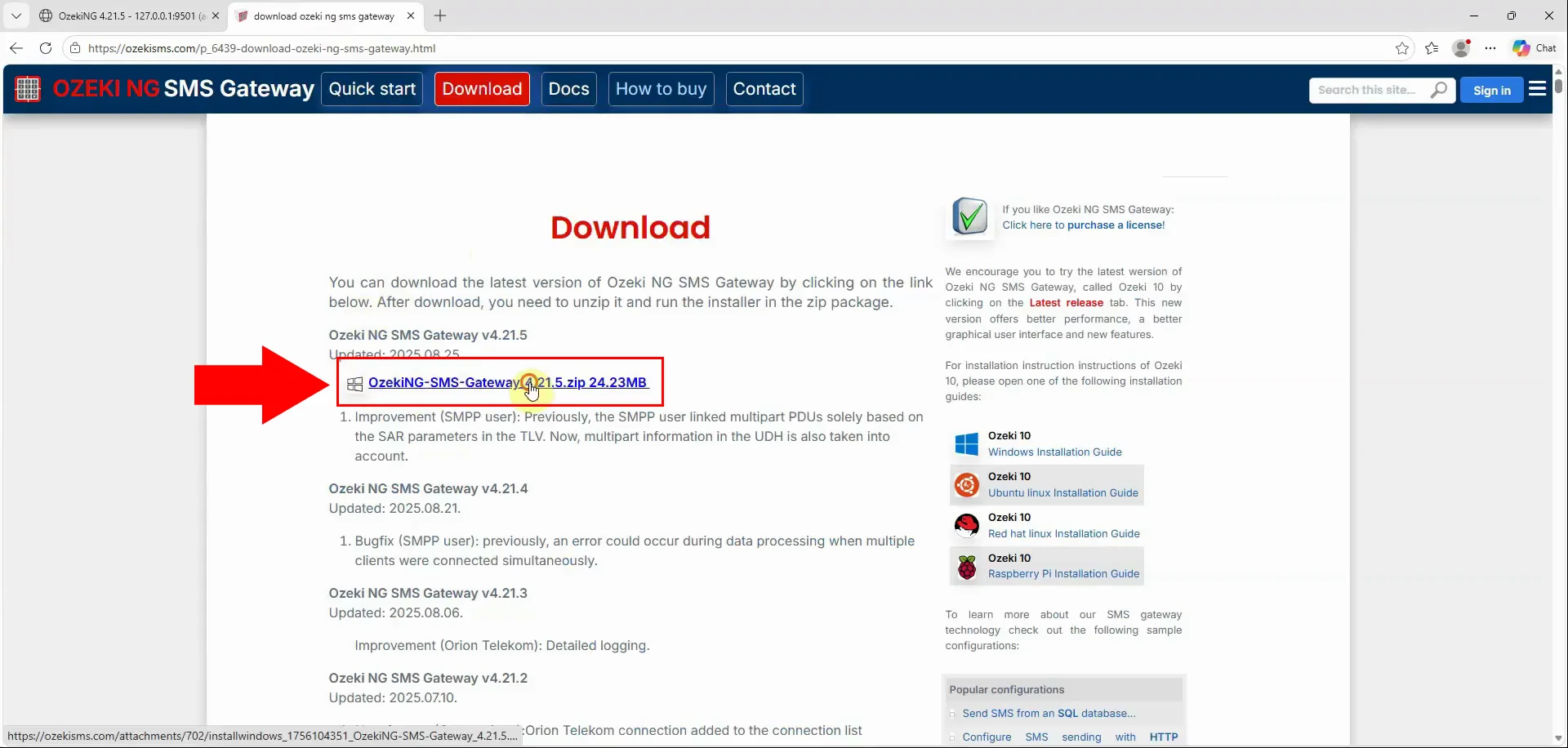
Copy the downloaded Ozeki NG installer into the same backup folder as the licence text file. Keeping the installer and licence data together makes later recovery faster and less error-prone. The completed backup can then be used to reinstall the software and restore its licence.
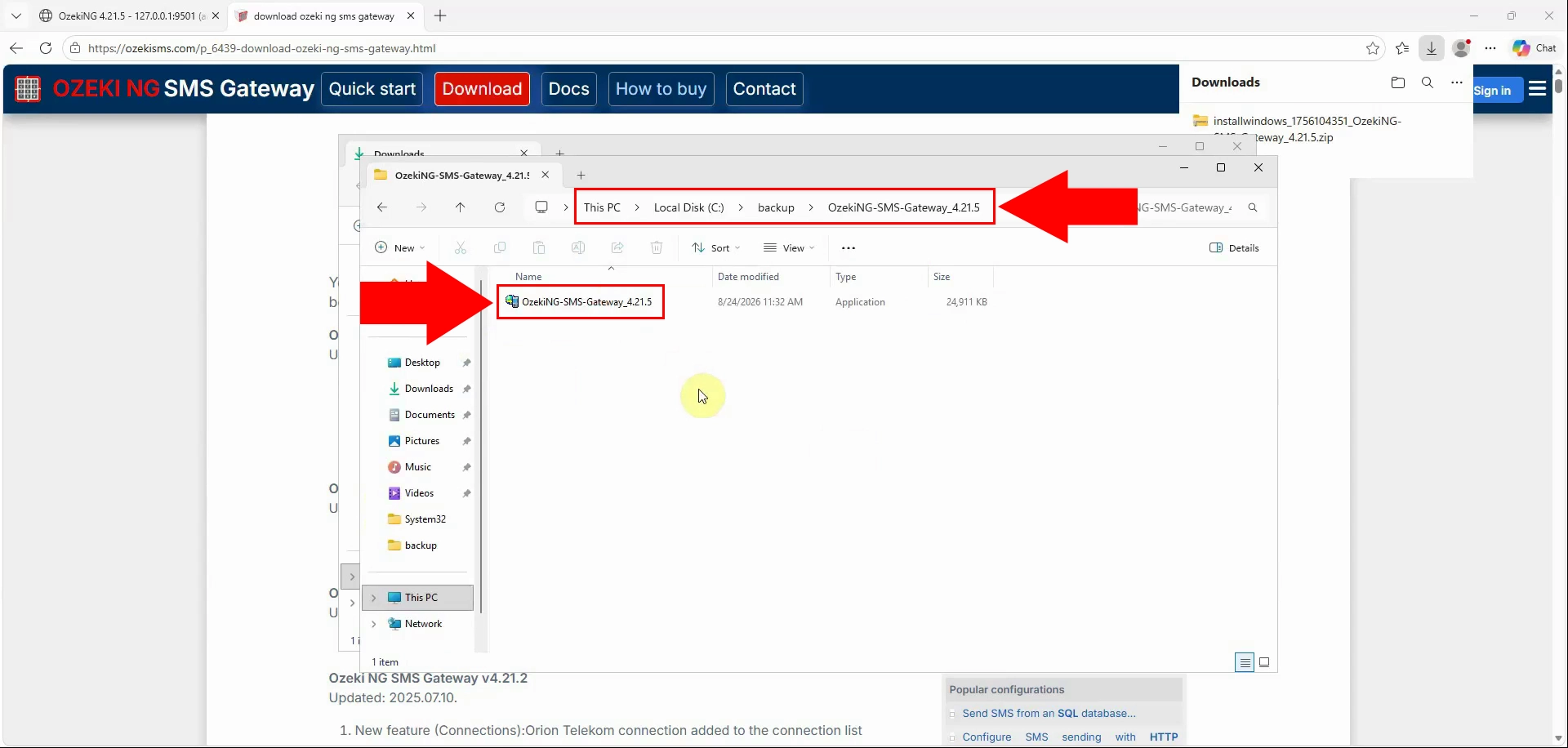
This is how you can restore your software and licence from your backup: Ozeki NG SMS Gateway software licence backup