

 Quick start
  Download
  Manual
  How to buy
  Contact
  Sign in
 Messages view in Ozeki NG SMS Gateway
On this page you will find detailed information on the available features of Messages view in Ozeki NG SMS Gateway. The possible message boxes are listed and their functions are detailed in the article.
Beside "Management Console", the other main view is "Messages" in Ozeki NG SMS Gateway. You need to click on "Messages" on the top right corner of the interface to get this view (Figure 1). In this section you can find all the options that are needed for sending and receiving SMS messages. The main menu is also available at the top left corner of the interface.
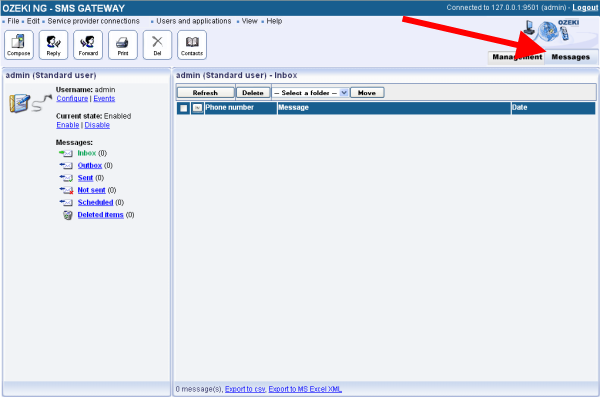
On the left hand side of the interface you can see the
username (in this case it is the admin user) and the current state of the
user (Enabled). Under "Current state" you can enable or disable users.
Still on the left hand side, there are the message boxes of the user: the
Inbox, Outbox, Sent, Not sent, Scheduled, and Deleted items.
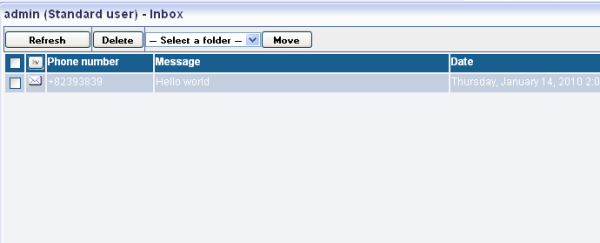
- Inbox: If there is an incoming message you can see it in the Inbox folder (Figure 2).
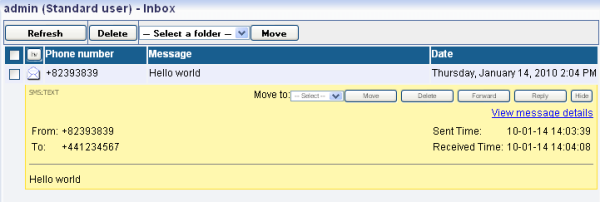
By clicking on the incoming message you can see the details of it. Thus the phone number of the sender and the recipient, the text of the message, and further details are included in the message such as the time of sending and receiving (Figure 3).
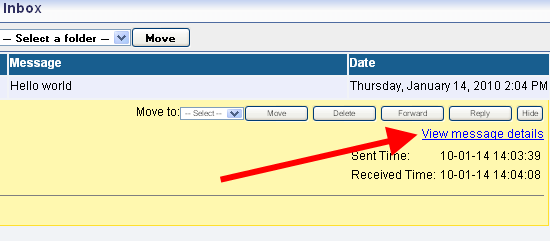
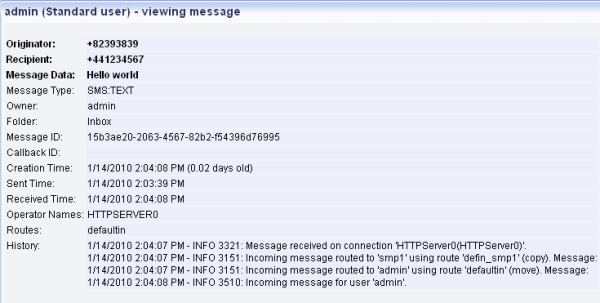
You can still have further information if you click on "View message details" option at the right hand side (Figure 4). With this option information such as Originator, Recipient, Message Data, Message Type, Owner, Folder, Message ID, Callback ID, Creation Time, Sent Time, Received Time, Operator Names, Routes, and History will be available about the message (Figure 5).
- Outbox: The outbox stores the messages to be sent. In practice it means that messages are stored here before they are sent out to the recipients.
- Sent: In this folder you can track back your sent messages. The details of messages are also available in this option, as well. In this way you can easily follow and preview your messaging process.
- Not Sent: Messages that are cannot be sent because of any failure are stored in this folder. Such a failure can be if the phone number of the recipient does not exist. In these times messages cannot be forwarded.
- Scheduled: This box contains messages that are scheduled for sending in a predefined time. This time can be set when you compose your message. The messages are stored in this folder until this specified time. In the specified time the message is sent out to the recipient.
FAQs
Does the software provide a way that limits the maximum number of messages a user can send?
You can set spending limits for individual users and applications. This is done through a user/application configuration form. When you activate accounting for a user, you can define daily, weekly, monthly, and yearly credit limits. These limits restrict the user's usage to the specified amount. Additionally, accounting generates a monthly report showing each user's message usage.
Can I set credit limits for each client / each user?
Starting with version 2.1.0, Ozeki NG SMS Gateway offers a credit limit handling
feature for better cost control.
- Individual User Configuration: Each user has a dedicated configuration form where you can enable accounting and set credit limits.
- Flexible Limits: Define credit limits for different periods - daily, weekly, monthly, yearly, or even a lifetime limit.
- Route-Specific Costs: Go beyond simple limits. Assign different credit costs for each message route. For example, sending via Vodafone might cost 1.2 credits, while T-Mobile uses 1 credit per message. This allows for accurate cost reflection based on your SMS provider pricing.
- Detailed Usage Tracking: The user configuration form provides reports on message history, including usage summaries and detailed logs. Leverage this data for accurate invoicing.
Dig deeper!
People who read this also read...
- Technical datasheet of Ozeki NG SMS Gateway
- Learn the key features of the software
- Find out the SMS features of the SMS gateway
- Learn the MMS functions of Ozeki NG SMS Gateway
- Browse through the functions of main menu
- Be familiar with Management Console
- Learn how to send mobile messages from Ozeki NG SMS Gateway
More information
- Key features of SMS Gateway
- Menu functions of Ozeki NG SMS Gateway
- Management Console of Ozeki NG SMS Gateway
- Messages view functions of Ozeki NG SMS Gateway
- Sending SMS messages from Ozeki NG SMS Gateway