

 Quick start
  Download
  Manual
  How to buy
  Contact
  Sign in
 Command line SMS client
The Ozeki NG command line tool (SendSMS.exe) makes it possible to send SMS messages from the command line. To send an SMS (Short Message Service) message all you have to do is execute the SendSMS.exe command with the appropriate parameters. Please follow these steps to send SMS from command line.
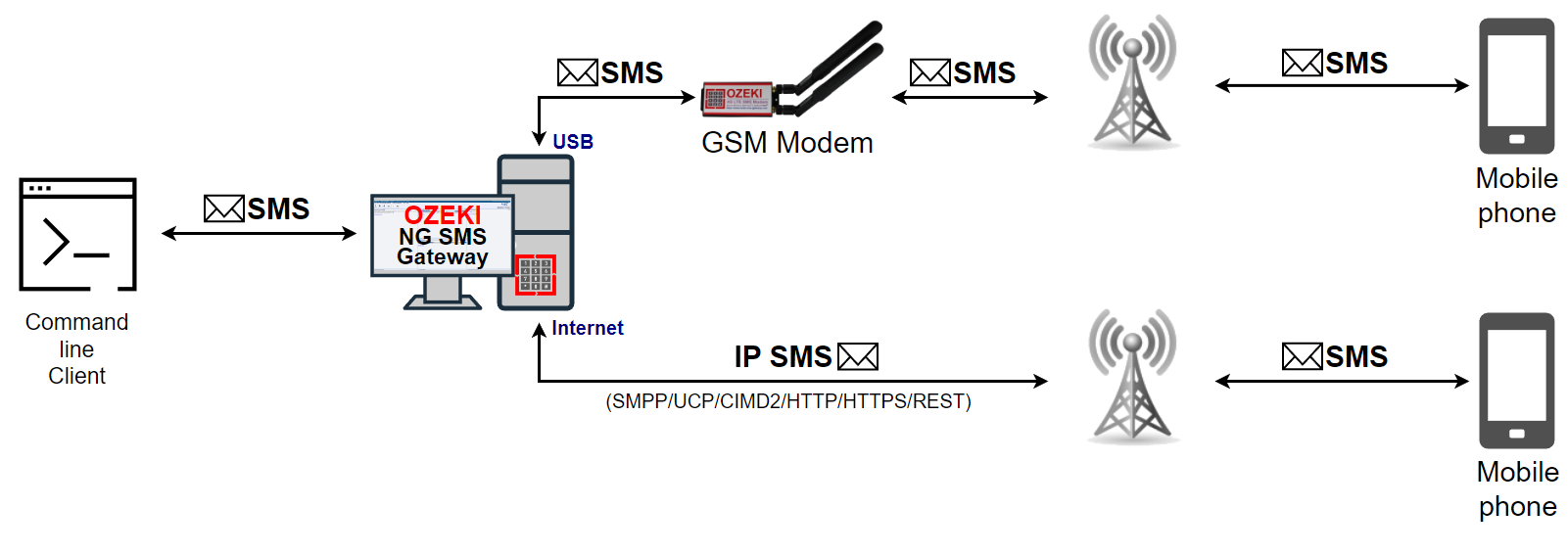
Enable the built-in SMPP server
In this guide you will find information how you can set up your Ozeki NG SMS Gateway to send messages from command line. First of all you should start the Ozeki NG SMS Gateway. Please click on Server preferences under the Edit menu (Figure 2).
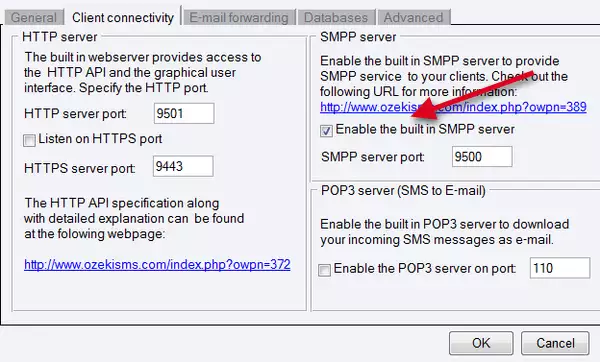
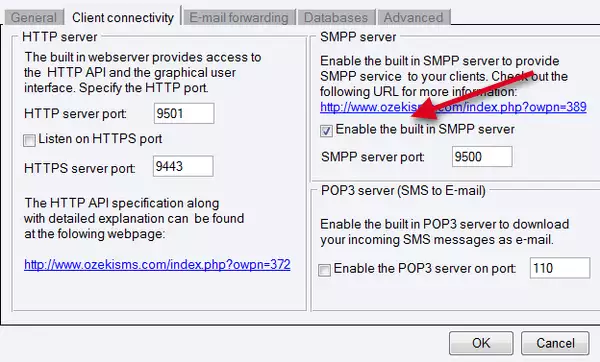
Click on the Client connectivity tab and enable the built-in SMPP server. Please note that the port number of the SMPP server is 9500. You will need to use this port number instead of 9501 (Figure 3).
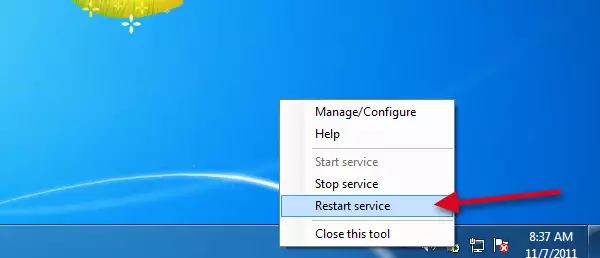
Once you have enabled the built-in SMPP server, you need to restart the service of Ozeki NG - SMS Gateway. Click on the service tool and select Restart service (Figure 4).
After you configured Ozeki NG you can start to receive requests from command line. Please follow the guide to reach this helpful SMS sending solution.
Using the Command line client
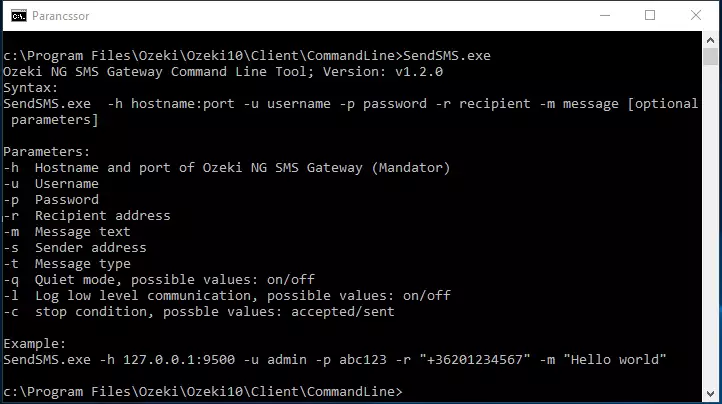
Start a command line interface and navigate to the Ozeki NG - SMS Gateway installation folder. The Ozeki NG - SMS Gateway Command line client is located in this folder after you installed the software (C:\Program Files\Ozeki\Ozeki NG SMS Gateway). The name of this application is SendSMS.exe. If you start this application without parameters, you can see the help of Ozeki NG SMS Gateway Command line client (Figure 4).
Help of Ozeki NG SMS Gateway Command line client
Ozeki NG SMS Gateway Command Line Tool; Version: v1.2.0

Syntax:
SendSMS.exe  -h hostname:port -u username -p password -r recipient -m message
[optional parameters]

Parameters:
-h  Hostname and port of Ozeki NG SMS Gateway (Mandator)
-u  Username
-p  Password
-r  Recipient address
-m  Message text
-s  Sender address
-t  Message type
-l  Log communication, possible values: on/off
-c  stop condition, possible values: accepted/sent

Example:
SendSMS.exe -h 127.0.0.1:9500 -u admin -p abc123 -r "+36201234567" -m "Hello world"
If you want to send the same message to multiple recipients you need to separate recipients with semicolons.
Example:
In this example "Hello World" is sent to "+36201234567" and "+36201122334" phone numbers.
SendSMS.exe -h 127.0.0.1:9500 -u admin -p abc123 -r "+36201234567";"+36201122334" -m "Hello World"
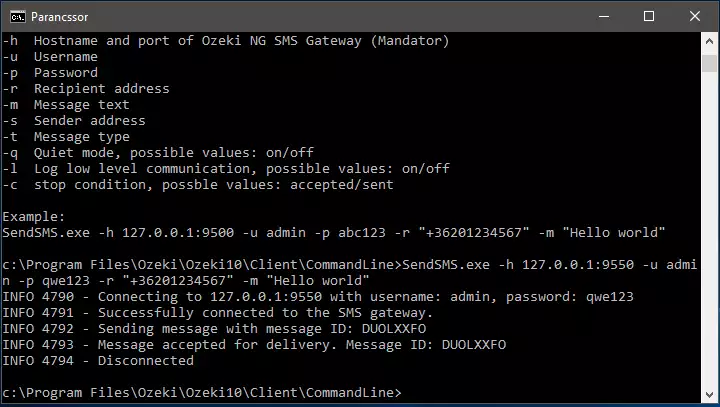
On Figure 5 you can see a test message sent from the Command line client.
If the execution of the client is successful, you can see the message is successfully forwarded to Ozeki NG - SMS Gateway (Figure 6).
Sent message in Ozeki NG - SMS Gateway
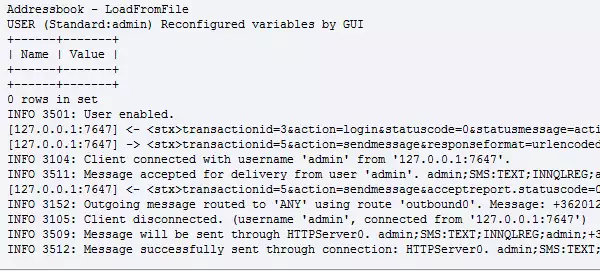
The command line client can only connect to a standard user in Ozeki NG - SMS Gateway. In this example I have connected to the admin user. The connection and the message sending is visible at the events of the admin user with enabled low level logging (Figure 7).
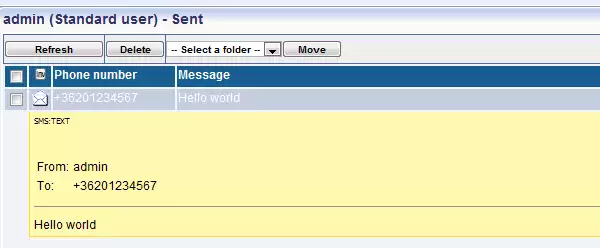
Also, you can see the sent message at the outbox of the admin user (Figure 8).
Conclusion
To summarize the above mentioned, this solution helped you, how to easily send messages from command line. This is a great small utility to send SMS messages from the command line.
More information